Thank you for subscribing to In The Know Traveler!
There are plenty of e-mail and Internet companies that now use programs to block unwanted e-mail, which you would call spam. Sometimes, however, these same, well-intentioned, programs block e-mail you want receive.
To Guarantee You Receiving Your In The Know Traveler Emails, Please Do The Following:
Add the corresponding In The Know Traveler email addresses to your email white list to have the best chance of receiving our news and updates
A whitelist is a list of e-mail addresses and domain names which e-mail blocking programs will allow to get through.
Is this important?
"Spam"?, has become a big problem. So much so that most e-mail services and Internet Service Providers (ISPs) have put up blocking systems in place or begun relying on blacklists to prevent as much spam as possible from getting to its users.
In The Know Traveler applauds these efforts to protect you from spam, but it is far from perfect. These systems still can block wanted e-mail. The more responsible anti-spam activists are working hard to cut down on these "false positives"?, but in the mean time, you might unexpectedly find you're not getting your subscription's content.
To protect the subscriptions and information you want there's something you can do to keep your content from getting trapped by email blocking systems and blacklists. You can fight the blacklists with a "white-list"?.
White-list In The Know Traveler now, before your ITKT and Devin Galaudet content gets mistakenly lost in the shuffle.
Below are instructions for the most popular email services. If yours isn't here, please contact your ISP for their whitelisting instructions. Please let us know their answers and we will try to add more solutions here! If you're using your own spam filtering or blocking software yourself, we've included instructions on how to keep your ITKT subscription safe, too.
Gmail:
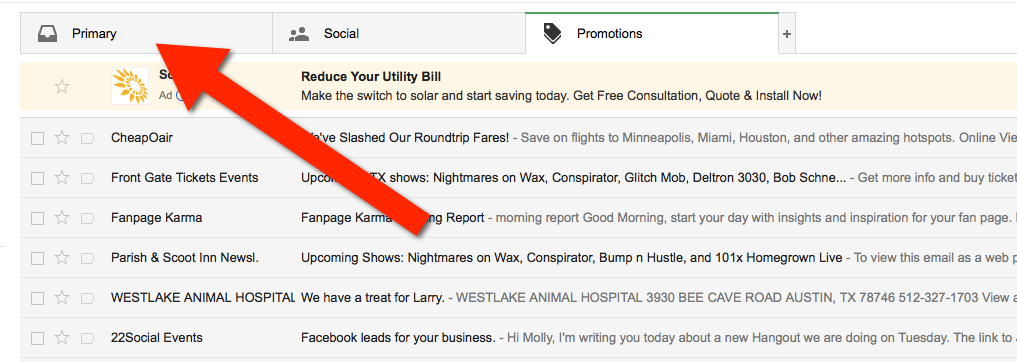
1. In your inbox, locate an email from dg@intheknowtraveler.com, In The Know Travel or Devin Galaudet (ex. your welcome mail from me and In The Know Traveler).
2. Click and drag this email to the "primary"? tab of your inbox from the “Promotions” tab.
Yahoo! Mail
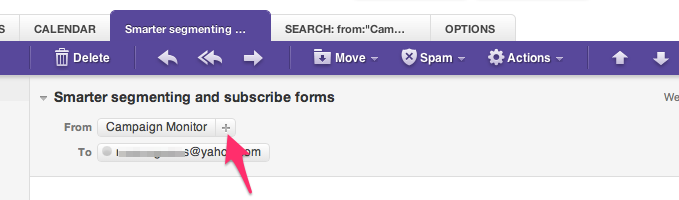
When opening your email, a "+"? symbol will display next to From: and the sender's name. Select this and an "Add to contacts"? pop-up should appear. Select "Save"?:
Mac Mail
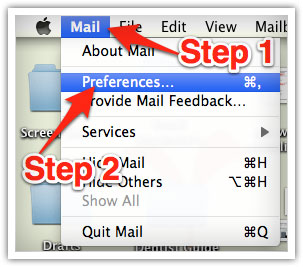
From the menu select "Mail"? and then "Preferences."?
Once in "Preferences,"? click the "Rules"? icon (see below). Then click the "Add Rule"? button on the far right.
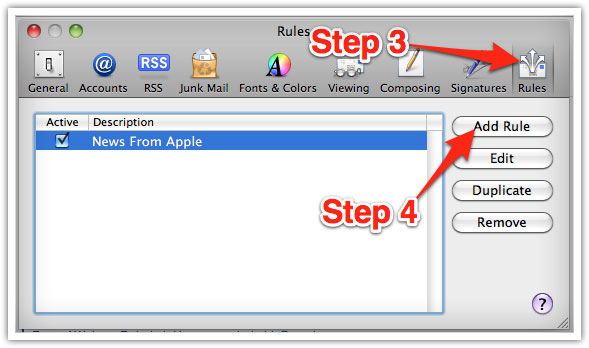
In the "Rules"? window, type a name for your rule in the "Description"? field, like ITKT.
Use the following settings: "If any of the following conditions are met: From Contains."?
Add ITKT’s email address in the text field beside "Contains."?
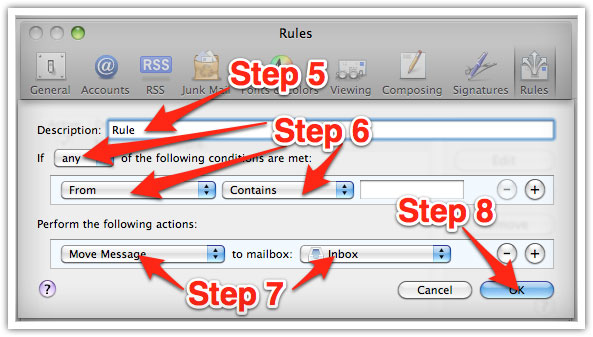
Select "Move Message"? and "Inbox"? from the drop-down menus. Then click "Ok"? to save the rule to make it permanent.
Outlook 2003 & Later
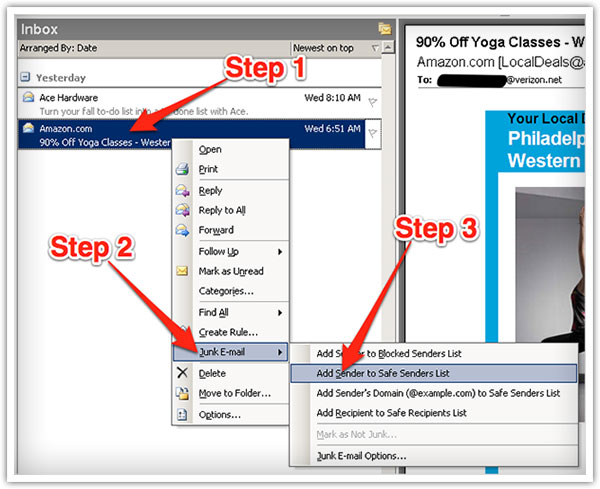
Right-click on the message in your inbox. Then click "Junk E-mail"? from the menu.
Click "Add Sender to Safe Senders List"? from the secondary pop-up.
Thank you for your support and interest in In The Know Traveler and we look forward to providing you with the best in travel news, information and inspiration.